Using TCR to Host Cilium Images
Overview
If you have high availability requirements for your cluster and need to ensure nodes can complete initialization and become ready quickly during scaling, it is recommended to sync Cilium's dependency images to a TCR image repository. When installing Cilium, specify the images from the TCR repository to avoid delays in node readiness caused by slow or failed Cilium image pulls.
This article describes how to migrate Cilium's dependency images to be hosted in a TCR image repository.
Create a TCR Image Repository
For fast image pulling, create a TCR image repository in the same region as your cluster. If you have clusters in multiple regions that need Cilium installation, you can use TCR's cross-region image replication or cross-instance (account) image sync capabilities to upload Cilium dependency images to one repository and automatically sync them to repositories in other regions.
Create a Namespace
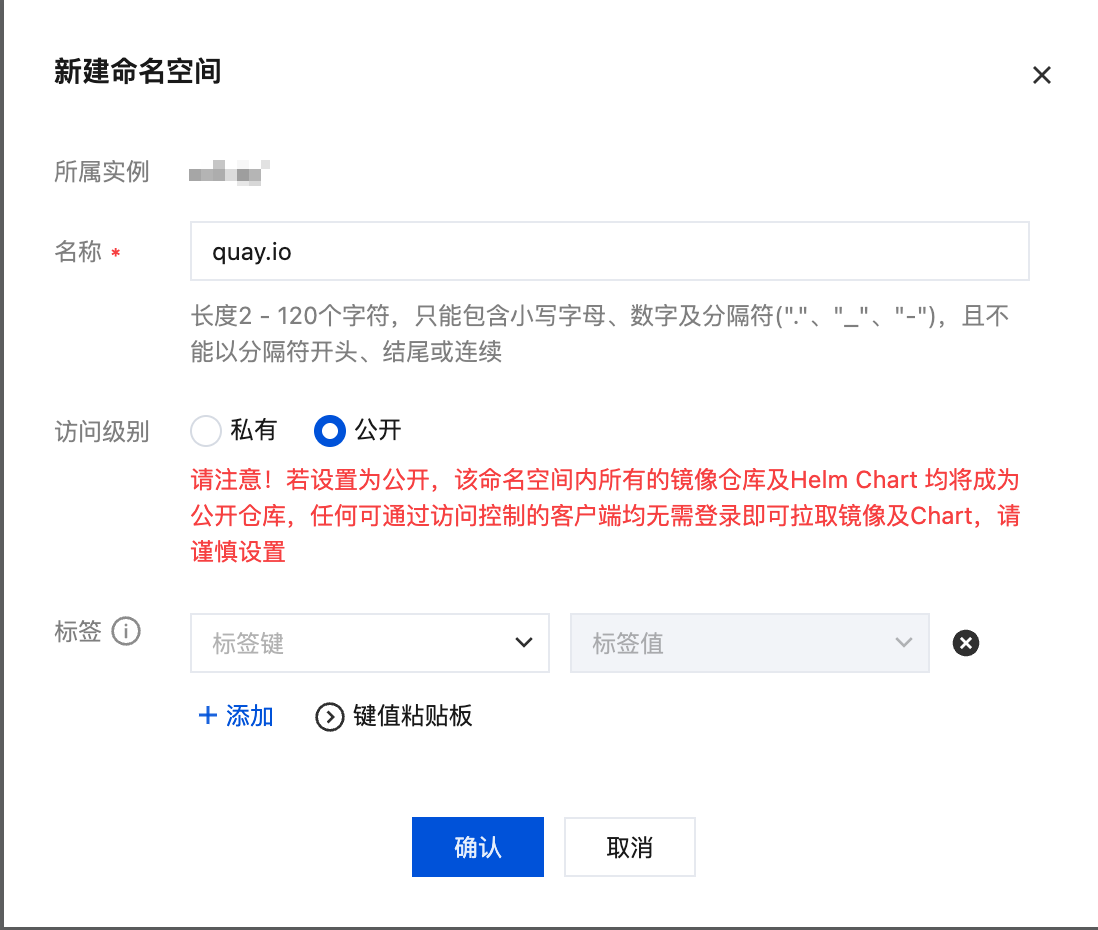
After creating the TCR image repository, create a new namespace:
- Name: quay.io.
- Access Level: Public.
Configure Access Control
To upload Cilium images, the client needs to access the TCR image repository:
- Pushing images from the public network: Refer to Configuring Public Network Access Control to enable public network access for the image repository.
- Pushing images from the private network: Refer to Configuring Private Network Access Control to enable private network access, ensuring that the VPC of the client uploading Cilium images establishes a private network connection with the TCR image repository.
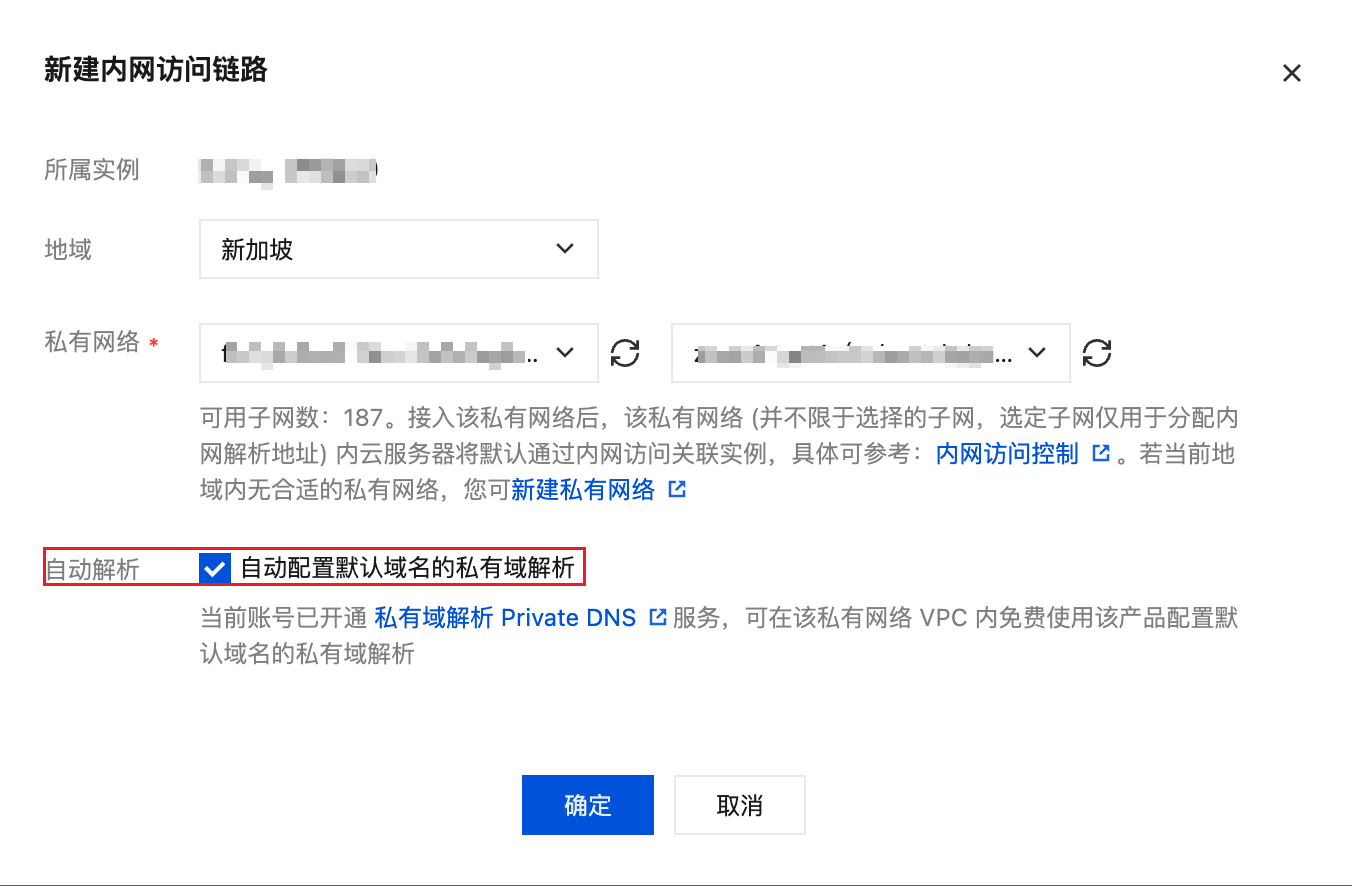
Additionally, nodes in the TKE cluster also need to access the TCR image repository to pull Cilium dependency images. Refer to Configuring Private Network Access Control to enable private network access between the repository and the TKE cluster's VPC, and ensure Auto Resolution is checked:
Install the TCR Addon
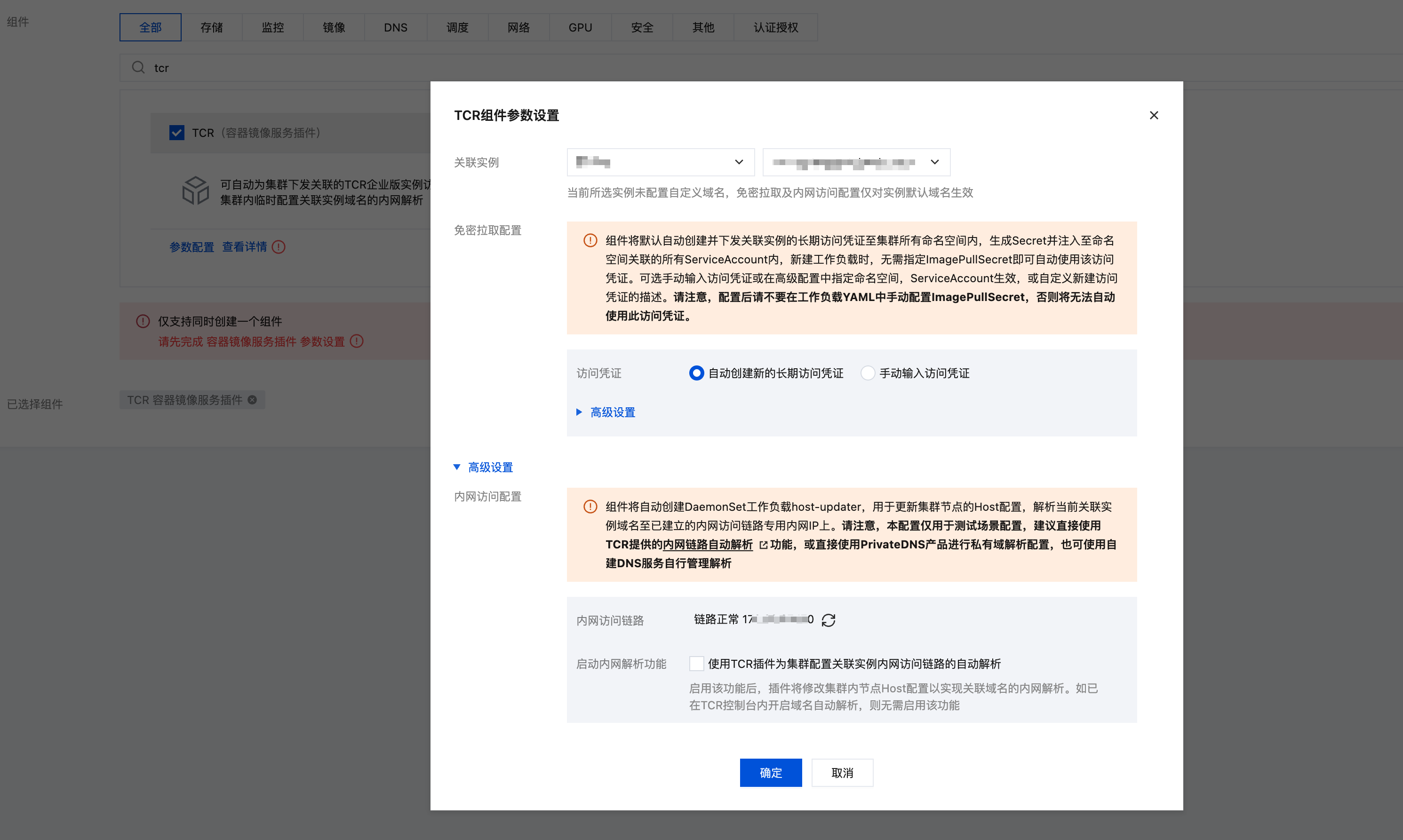
In the cluster's Component Management page, search for "tcr" and install the component. In the parameter configuration, expand Advanced Settings, ensure the Private Network Access Link shows normal status, and do not check Enable Private Network Resolution (since we already configured auto resolution when setting up the TCR private network access link, there is no need to deploy hosts entries for TCR domain resolution):
Configure and Obtain Access Credentials
Before uploading Cilium images, configure TCR access credentials. Refer to User-level Account Management and Service-level Account Management to obtain an access credential for logging into the TCR image repository.
Migrate Cilium Images
Before uploading Cilium images, first determine which images are depended on by the current installation configuration. Use helm template with the installation parameters you plan to add to see which images are used in the rendered YAML:
$ helm template cilium cilium/cilium --version 1.20.1 \
  --namespace kube-system \
  --set operator.tolerations[0].key="node-role.kubernetes.io/control-plane",operator.tolerations[0].operator="Exists" \
  --set operator.tolerations[1].key="node-role.kubernetes.io/master",operator.tolerations[1].operator="Exists" \
  --set operator.tolerations[2].key="node.kubernetes.io/not-ready",operator.tolerations[2].operator="Exists" \
  --set operator.tolerations[3].key="node.cloudprovider.kubernetes.io/uninitialized",operator.tolerations[3].operator="Exists" \
  --set operator.tolerations[4].key="tke.cloud.tencent.com/uninitialized",operator.tolerations[4].operator="Exists" \
  --set operator.tolerations[5].key="tke.cloud.tencent.com/eni-ip-unavailable",operator.tolerations[5].operator="Exists" \
  --set routingMode=native \
  --set endpointRoutes.enabled=true \
  --set ipam.mode=delegated-plugin \
  --set enableIPv4Masquerade=false \
  --set devices=eth+ \
  --set cni.chainingMode=generic-veth \
  --set cni.customConf=true \
  --set cni.configMap=cni-config \
  --set cni.externalRouting=true \
  --set extraConfig.local-router-ipv4=169.254.32.16 \
  --set kubeProxyReplacement=true \
  --set k8sServiceHost=169.254.128.125 \
  --set k8sServicePort=60002 \
  | grep image: | awk -F 'image: "' '/image:/ {gsub(/@sha256:[^"]+"/, ""); print $2}' | sort | uniq
quay.io/cilium/cilium-envoy:v1.37.5-1786810558-766ccfb37260a43e9d228837aa84ce3faf9f64e7
quay.io/cilium/cilium:v1.20.1
quay.io/cilium/operator-generic:v1.20.1
Next, prepare to upload images. You can use skopeo to migrate Cilium dependency images to the TCR image repository. Refer to Installing Skopeo for installation instructions.
Then log in to the TCR image repository with skopeo (replace the repository domain, username, and password):
skopeo login xxx.tencentcloudcr.com --username xxx --password xxx
Finally, use skopeo to sync all Cilium dependency images to the TCR image repository:
skopeo copy -a docker://quay.io/cilium/cilium-envoy:v1.37.5-1786810558-766ccfb37260a43e9d228837aa84ce3faf9f64e7  docker://your-tcr-name.tencentcloudcr.com/quay.io/cilium/cilium-envoy:v1.37.5-1786810558-766ccfb37260a43e9d228837aa84ce3faf9f64e7
skopeo copy -a docker://quay.io/cilium/cilium:v1.20.1  docker://your-tcr-name.tencentcloudcr.com/quay.io/cilium/cilium:v1.20.1
skopeo copy -a docker://quay.io/cilium/operator-generic:v1.20.1  docker://your-tcr-name.tencentcloudcr.com/quay.io/cilium/operator-generic:v1.20.1
If your installation configuration depends on many images, you can use a script to sync all dependency images to the TCR repository at once. Save the script content below to sync-cilium-images.sh:
TARGET_REGISTRYis the target TCR image repository address. Replace it with your own repository address.- Modify the installation parameters used after
helm templateaccording to your actual deployment configuration.
#!/bin/bash

set -e

TARGET_REGISTRY="your-tcr-name.tencentcloudcr.com"

source_images=$(helm template cilium cilium/cilium --version 1.20.1 \
 --namespace kube-system \
 --set operator.tolerations[0].key="node-role.kubernetes.io/control-plane",operator.tolerations[0].operator="Exists" \
 --set operator.tolerations[1].key="node-role.kubernetes.io/master",operator.tolerations[1].operator="Exists" \
 --set operator.tolerations[2].key="node.kubernetes.io/not-ready",operator.tolerations[2].operator="Exists" \
 --set operator.tolerations[3].key="node.cloudprovider.kubernetes.io/uninitialized",operator.tolerations[3].operator="Exists" \
 --set operator.tolerations[4].key="tke.cloud.tencent.com/uninitialized",operator.tolerations[4].operator="Exists" \
 --set operator.tolerations[5].key="tke.cloud.tencent.com/eni-ip-unavailable",operator.tolerations[5].operator="Exists" \
 --set routingMode=native \
 --set endpointRoutes.enabled=true \
 --set ipam.mode=delegated-plugin \
 --set enableIPv4Masquerade=false \
 --set devices=eth+ \
 --set cni.chainingMode=generic-veth \
 --set cni.customConf=true \
 --set cni.configMap=cni-config \
 --set cni.externalRouting=true \
 --set extraConfig.local-router-ipv4=169.254.32.16 \
 --set kubeProxyReplacement=true \
 --set k8sServiceHost=169.254.128.125 \
 --set k8sServicePort=60002 \
 | grep image: | awk -F 'image: "' '/image:/ {gsub(/@sha256:[^"]+"/, ""); print $2}' | sort | uniq)

if [[ -z "${source_images}" ]]; then
 echo "No images found"
 exit 1
fi

echo "The following images will be synced:"
while IFS= read -r source_image; do
 if [[ -n "${source_image}" ]]; then
   target_image="${TARGET_REGISTRY}/${source_image}"
   echo "${source_image} --> ${target_image}"
 fi
done <<<"${source_images}"

read -p "Start syncing? (y/n): " confirm
if [ "$confirm" != "y" ]; then
 echo "Cancelled"
 exit 0
fi

while IFS= read -r source_image; do
 if [[ -n "${source_image}" ]]; then
   target_image="${TARGET_REGISTRY}/${source_image}"
   echo "Syncing image ${source_image} to ${target_image}"
   skopeo copy -a "docker://${source_image}" "docker://${target_image}"
 fi
done <<<"${source_images}"
Grant execute permission and run:
chmod +x sync-cilium-images.sh
./sync-cilium-images.sh
Install Cilium Using TCR Images
Refer to Installing Cilium for installation, replacing dependency images with the corresponding TCR repository addresses (example uses the Native Routing (VPC-CNI) setup; it shows the image-replacement essentials — follow the installation doc for the full parameter set, keeping functional parameters such as localRedirectPolicies.enabled=true):
helm upgrade --install cilium cilium/cilium --version 1.20.1 \
  --namespace kube-system \
  --set image.repository=your-tcr-name.tencentcloudcr.com/quay.io/cilium/cilium \
  --set envoy.image.repository=your-tcr-name.tencentcloudcr.com/quay.io/cilium/cilium-envoy \
  --set operator.image.repository=your-tcr-name.tencentcloudcr.com/quay.io/cilium/operator \
  --set operator.tolerations[0].key="node-role.kubernetes.io/control-plane",operator.tolerations[0].operator="Exists" \
  --set operator.tolerations[1].key="node-role.kubernetes.io/master",operator.tolerations[1].operator="Exists" \
  --set operator.tolerations[2].key="node.kubernetes.io/not-ready",operator.tolerations[2].operator="Exists" \
  --set operator.tolerations[3].key="node.cloudprovider.kubernetes.io/uninitialized",operator.tolerations[3].operator="Exists" \
  --set operator.tolerations[4].key="tke.cloud.tencent.com/uninitialized",operator.tolerations[4].operator="Exists" \
  --set operator.tolerations[5].key="tke.cloud.tencent.com/eni-ip-unavailable",operator.tolerations[5].operator="Exists" \
  --set routingMode=native \
  --set endpointRoutes.enabled=true \
  --set ipam.mode=delegated-plugin \
  --set enableIPv4Masquerade=false \
  --set devices=eth+ \
  --set cni.chainingMode=generic-veth \
  --set cni.customConf=true \
  --set cni.configMap=cni-config \
  --set cni.externalRouting=true \
  --set extraConfig.local-router-ipv4=169.254.32.16 \
  --set localRedirectPolicies.enabled=true \
  --set sysctlfix.enabled=false \
  --set kubeProxyReplacement=true \
  --set k8sServiceHost=$(kubectl get ep kubernetes -n default -o jsonpath='{.subsets[0].addresses[0].ip}') \
  --set k8sServicePort=60002
If installation has already been performed, modify the dependency image addresses as follows:
helm upgrade cilium cilium/cilium --version 1.20.1 \
  --namespace kube-system \
  --reuse-values \
  --set image.repository=your-tcr-name.tencentcloudcr.com/quay.io/cilium/cilium \
  --set envoy.image.repository=your-tcr-name.tencentcloudcr.com/quay.io/cilium/cilium-envoy \
  --set operator.image.repository=your-tcr-name.tencentcloudcr.com/quay.io/cilium/operator